User manual for teams
Teams may use this website for enrolling athletes in promoted upcoming tournaments. This includes
- the registration as a team,
- setting up the registered team,
- managing a team's athletes and
- enrolling those athletes in locally promoted tournaments.
Managing a team, its athletes and their participation in tournaments is implemented with a focus on data minimization and data protection to comply with EU GDPR as good as possible. There is a separate page providing background information on this topic.
Register a team
Registration is open to every team.
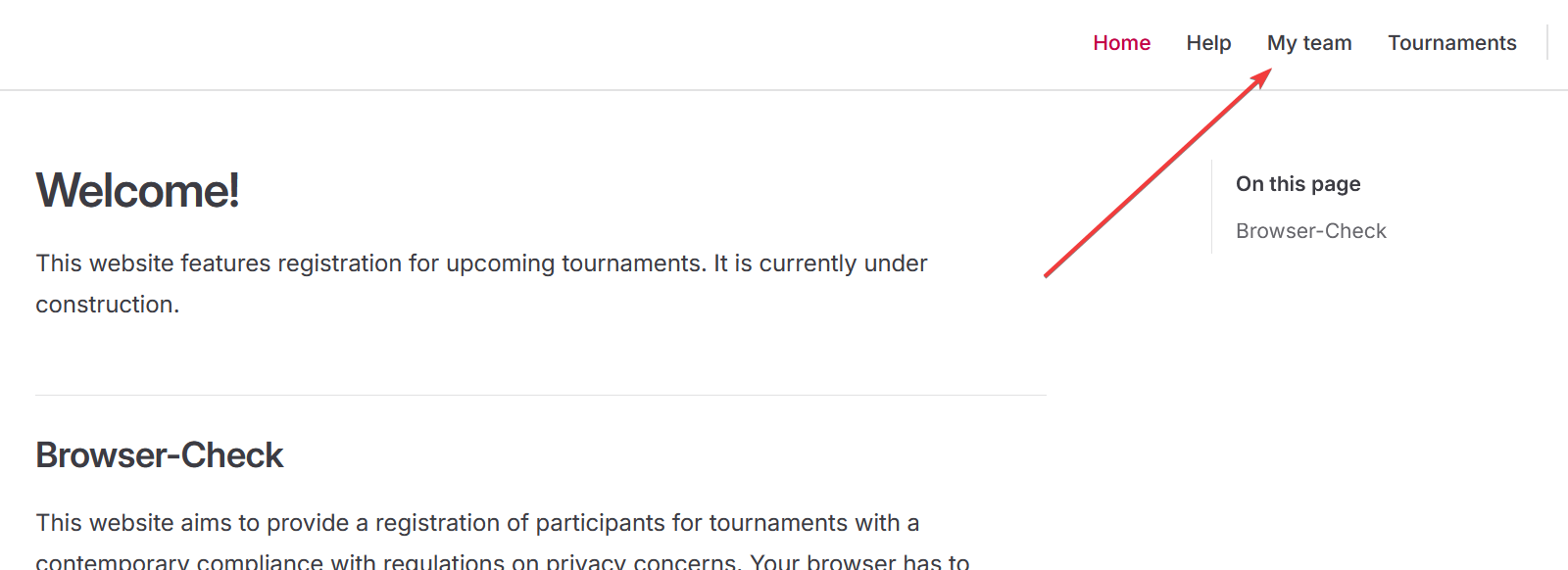
On every page, there is a menu item labelled My team in the top-right corner leading to the team management on click.
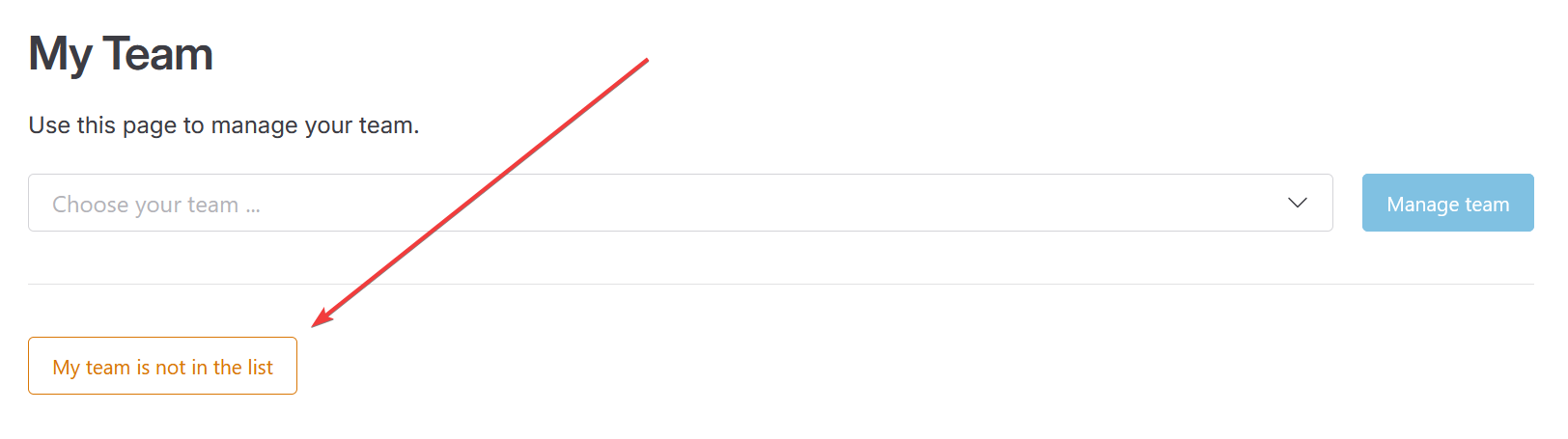
Registration of a team is available unless it is included with the list of teams provided there.
Registration of a team already included with the list is possible, but will be rejected as part of moderation.
Clicking the button labelled My team is not in the list triggers the registration of a new team.
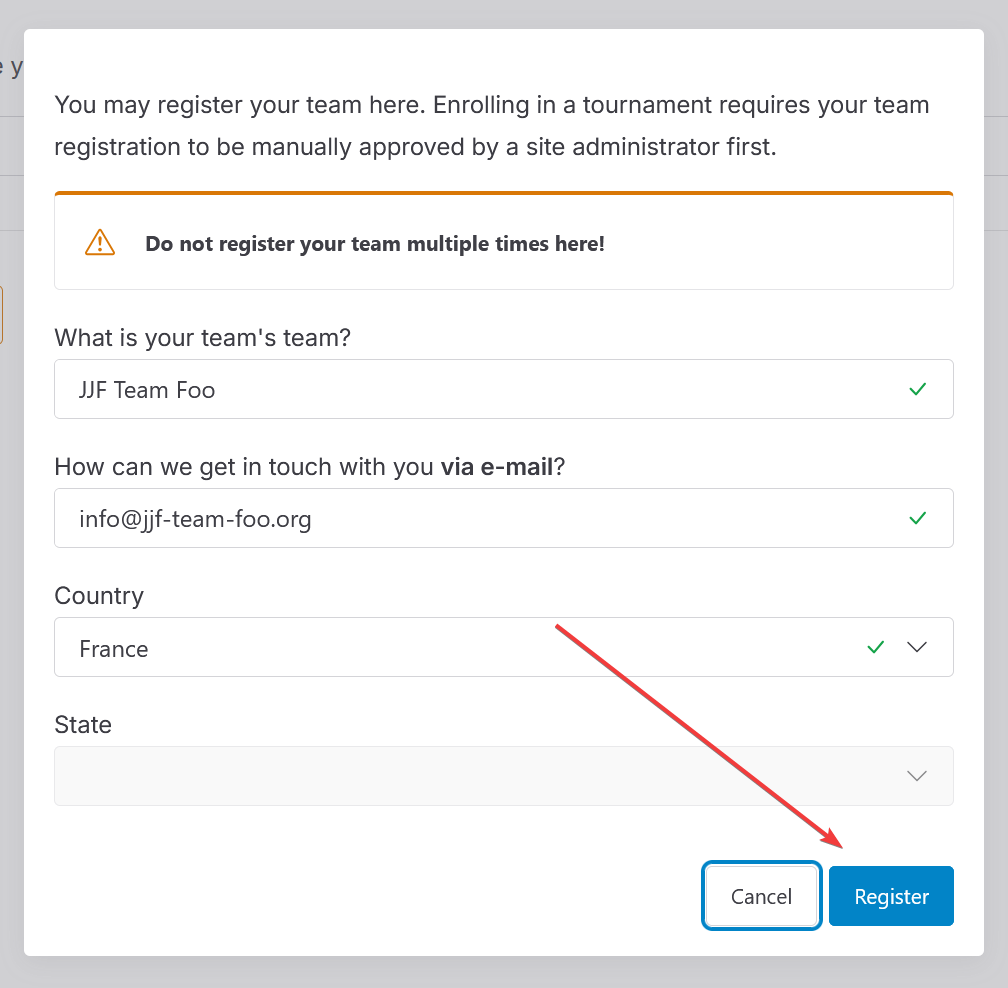
A form is gathering information on a team necessary for its registration.
- The team's name must not be empty but may contain any name you choose to be used e.g. in applications for tournaments.
- The mail address is necessary in case there are issues in need of clarification.
- The country and - in case of Germany - the state must be selected to deal with naming conflicts on the one hand and to enable special in-tournament statistics on the other hand.
After providing that information you need to click the button labelled Register.
This is finishing the team's basic registration and you can instantly prepare the team's management.
Moderation of teams
Every registration of a teams needs to be approved officially after manual revision. This moderation is meant to prevent double registrations per team potentially resulting in redundantly enrolling athletes in a tournament.
Because of that a freshly registered team with pending approval must not enroll athletes in any tournament.
Set a password
Registered teams are managed in the browser. When accessing the team's management for the first time, a password must be set to prepare the encryption of its data.
- On registering a fresh team the prompt for setting a popup is following right after confirming the registration.
- In all other cases you need to
click on the main menu item labelled My team in the top-right corner of every page
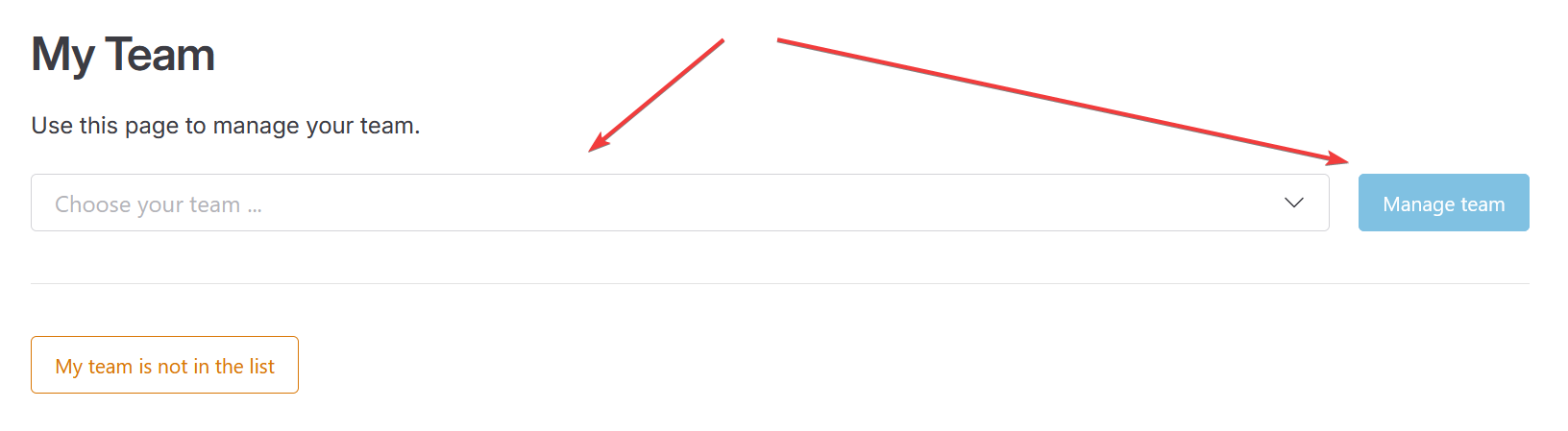
pick the own team from the team selector, then click on the button labelled Manage team and
get to the prompt for setting the password when trying to access a team's management this way for the first time.
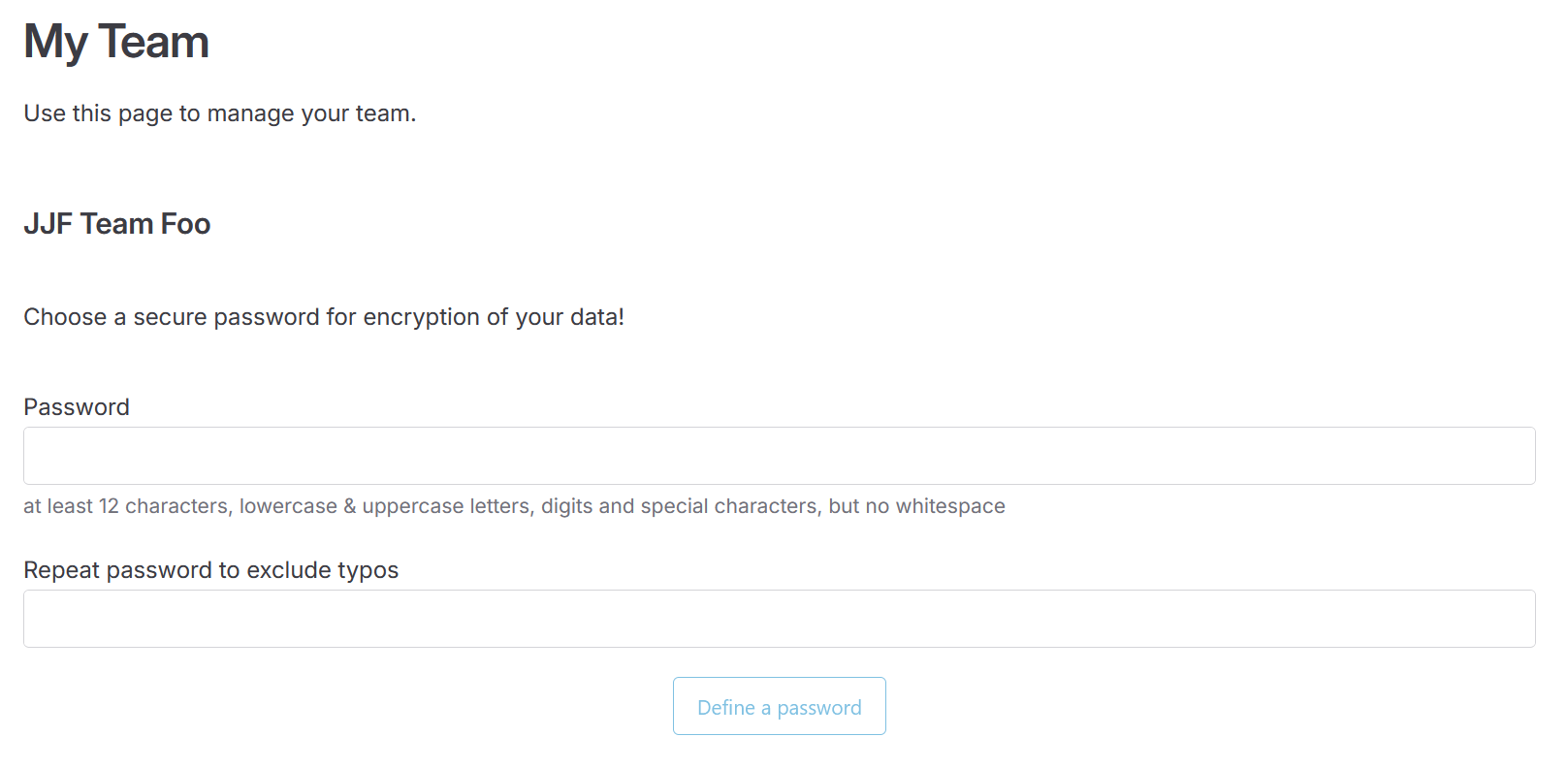
Information
In case no prompt for setting a new password is presented, the password has been set before.
The password must consist of at least 12 characters and must contain at least one uppercase letter, one lowercase letter, one digit and one special charactert. It must not contain any whitespace.
Do not forget the password!
The password is not saved anywhere. There is no way of resetting it because of that.
In case you have forgotten the password, all previously managed athletes of your team are lost. All we can do is resetting your team to its initial state in which there is no data such as a list of athletes. A new password must be set and you need to start adding athletes from scratch.
Existing applications for tournaments are still valid and may be fetched by their hosts, though.
When password has been set, the team's management view is displayed in its unlocked state so that you can instantly start adding athletes of your team.
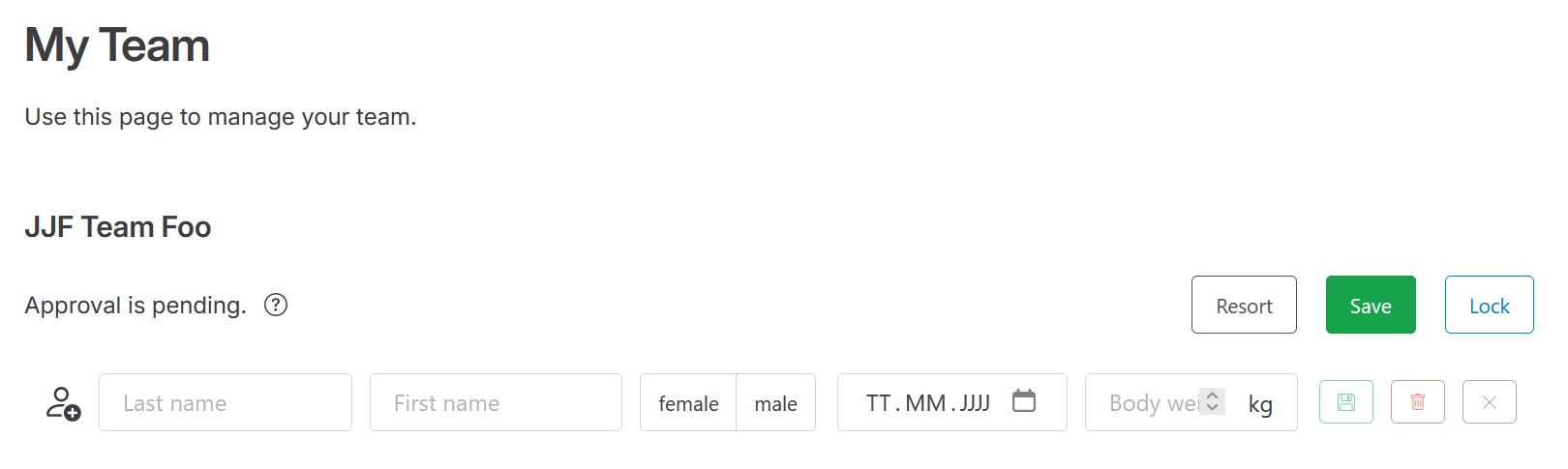
Managing a team
When a password has been set, managing the team is possible with any browser at any time as long as that password is available.
- Right after setting the password, the team's management view is instantly displayed in its unlocked state.
- In all other cases you need to
click on the main menu item labelled My team in the top-right corner of every page
pick the own team from the team selector, then click on the button labelled Manage team and
enter previously set password when prompted prior to clicking the button labelled Unlock.
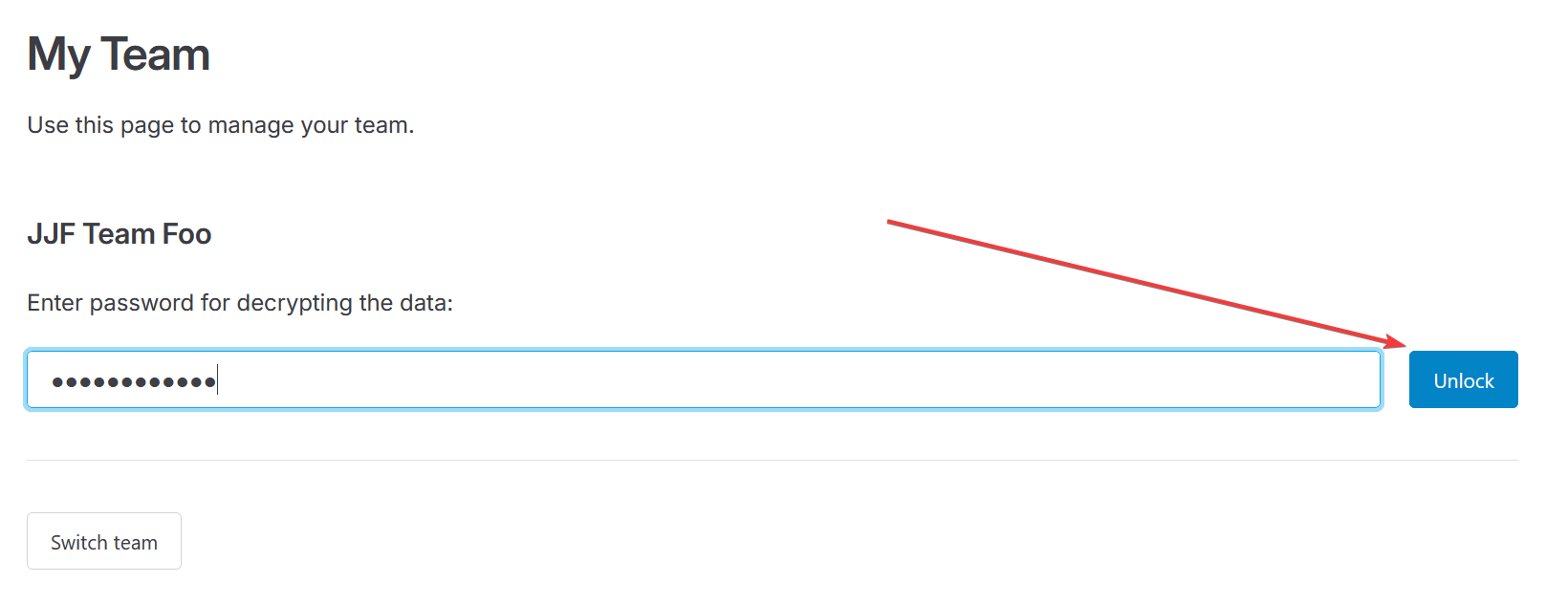
When entering correct password, the team's management view in its unlocked state is presented:
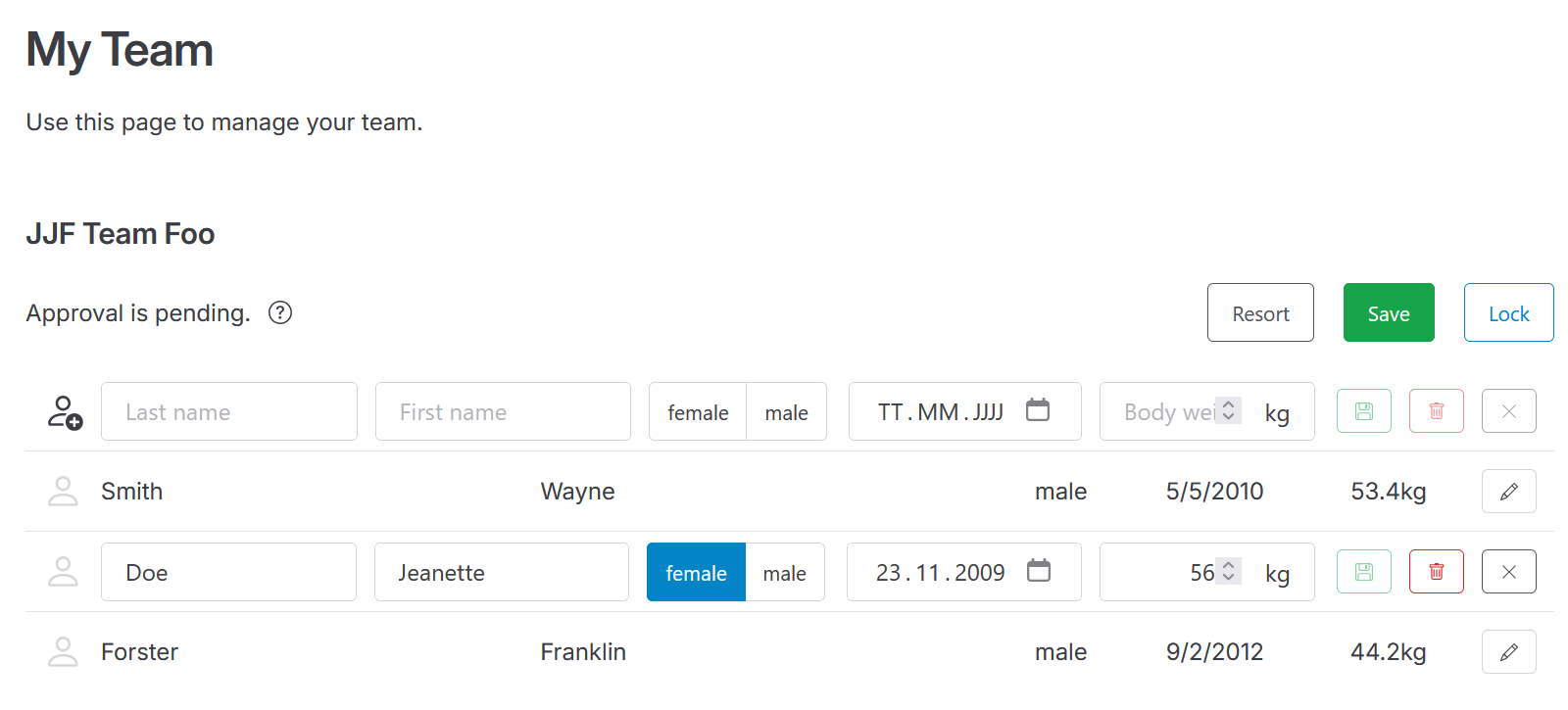
Your password is used to decrypt your team's data as fetched from server in background. In case this is failing, the prompt for the entering a password is kept visible.
Mind to save!
You can edit a tournament's record after successfully unlocking it. All changes you make occur in your browser, only. They won't be implicitly saved on the server as this requires to re-encrypt the whole record including data of all athletes and send it to the server no matter the actual changes you have made.
That is why you always have to click the top-right button labelled Save to explicitly re-encrypt all data in the browser and send it to the server for persistent saving. In addition, applications for upcoming tournaments are updated based on latest set of your team's athletes.
If you forget to save changes explicitly this way, all changes are lost as soon as you close the browser or leave the website for another one.
Managing athletes
When unlocking a team's management view you can manage athletes of your team. There is a table listing all previously provided athletes. New athletes can be added using first row of that table.
Adding athletes
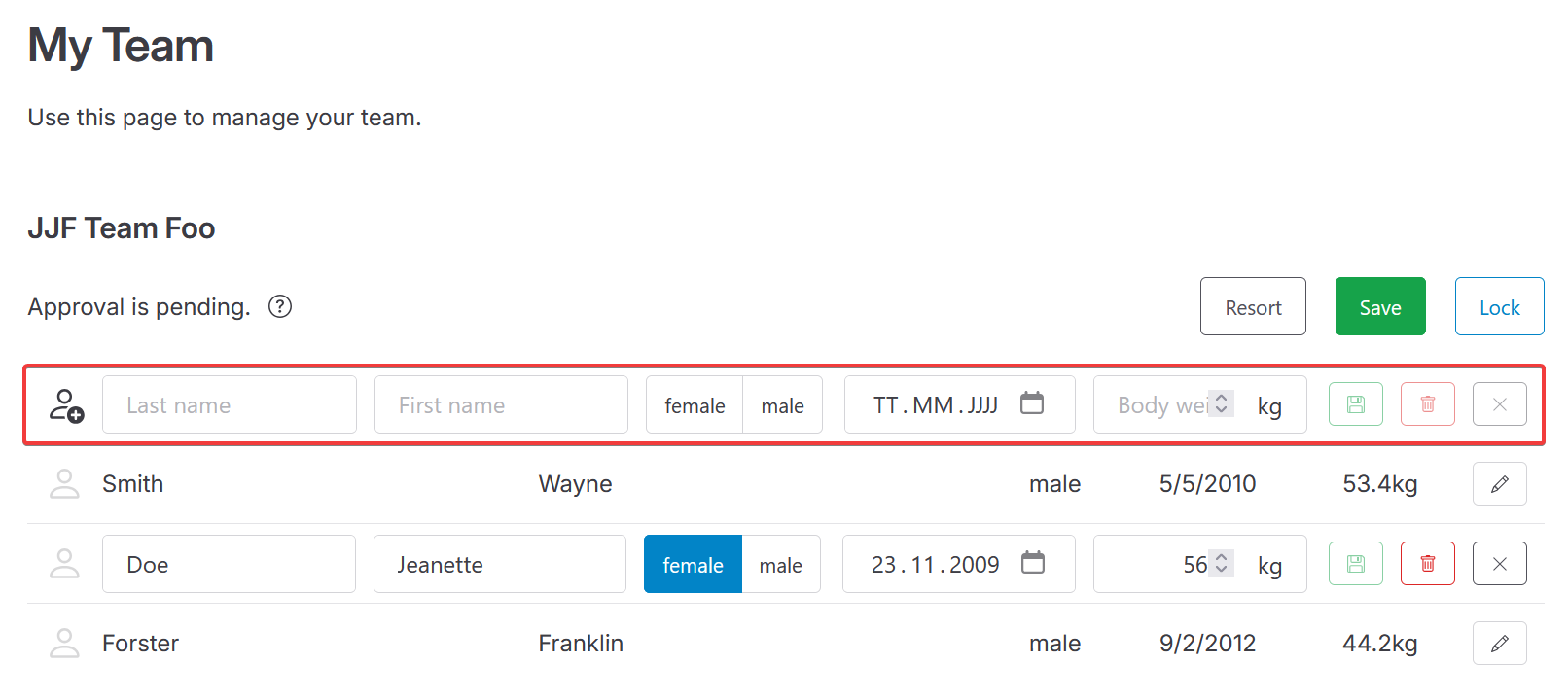
In first row of presented table you can enter
- the last name,
- the first name,
- the sex,
- the birthday and
- the body weight
of an athlete to add. Clicking the green button at the right end of that row is adding another row with entered information to the table.
Mind to save!
Added athletes are not saved persistently unless you click the green top-right button labelled Save.
Improved input of new athletes
It is possible to add multiple athletes in a row using only the keyboard.
Focus can be moved from field to field using the Tab key as usual. The sex can be chosen using the Left/Right arrow keys. After entering the body weight, Enter key can be used instead of clicking the green button to add the new athlete.
After that, all fields of first row get reset and focus returns to first field to instantly start entering input for another athlete.
Sorting order
New athletes are always appended to the end of the list. This can result in an unsorted list which is harder to maintain. By clicking the button with label Resort atop the table all existing athletes are sorted by last name and first name in ascending order.
Edit athletes
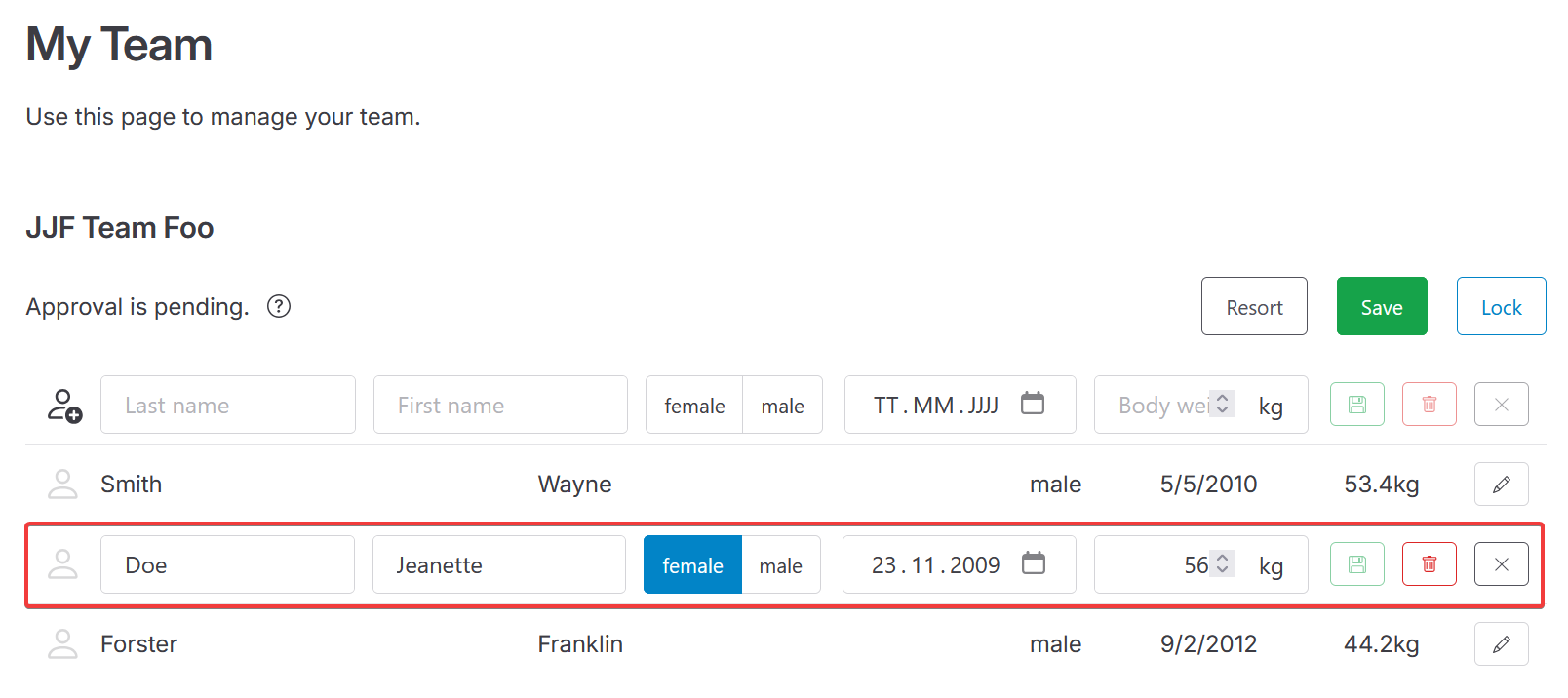
Every athlete existing in the list can be edited by clicking the pencil button at right end of either row. This replaces textual display of athlete's details with editable fields.
When done, made changes can be confirmed by clicking on the green button at the right end of the line. When clicking the gray X icon instead, changes made to the athlete are not confirmed and previous details are kept.
Mind to save!
Even confirmed changes are not saved persistently unless you click the green top-right button labelled Save.
Remove athletes
Any listed athlete can be removed, too. First, click on the pencil button next to the athlete to enable its editable fields. Then, click on the red button with a trash bin to remove it from the list.
Mind to save!
Removing an athlete from this list does not remove it persistently unless you click the green top-right button labelled Save.
Applying for tournaments
Approval necessary
Freshly registered teams have to be approved officially so that its athletes can be enrolled in upcoming tournaments. An according note appears atop the list of athletes while team's approval is still pending.
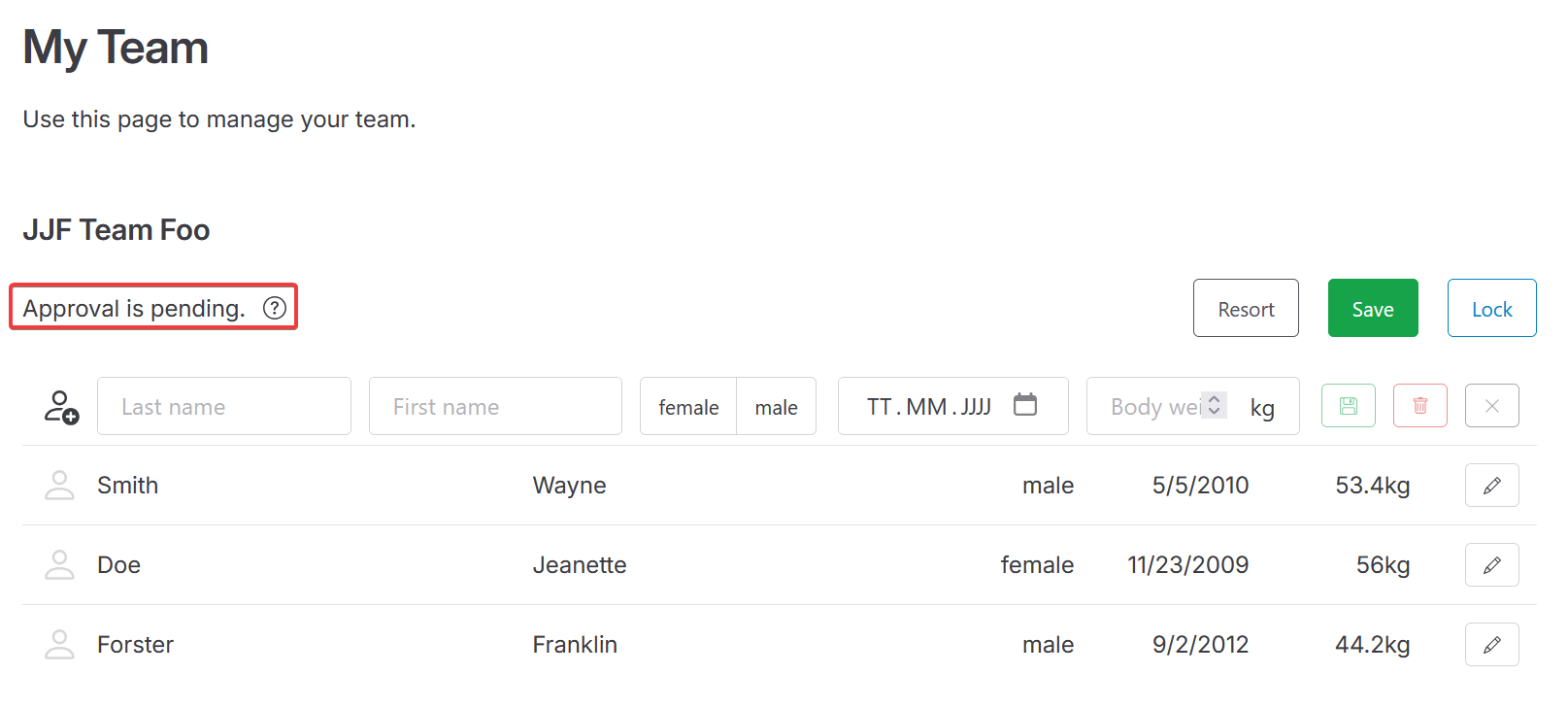
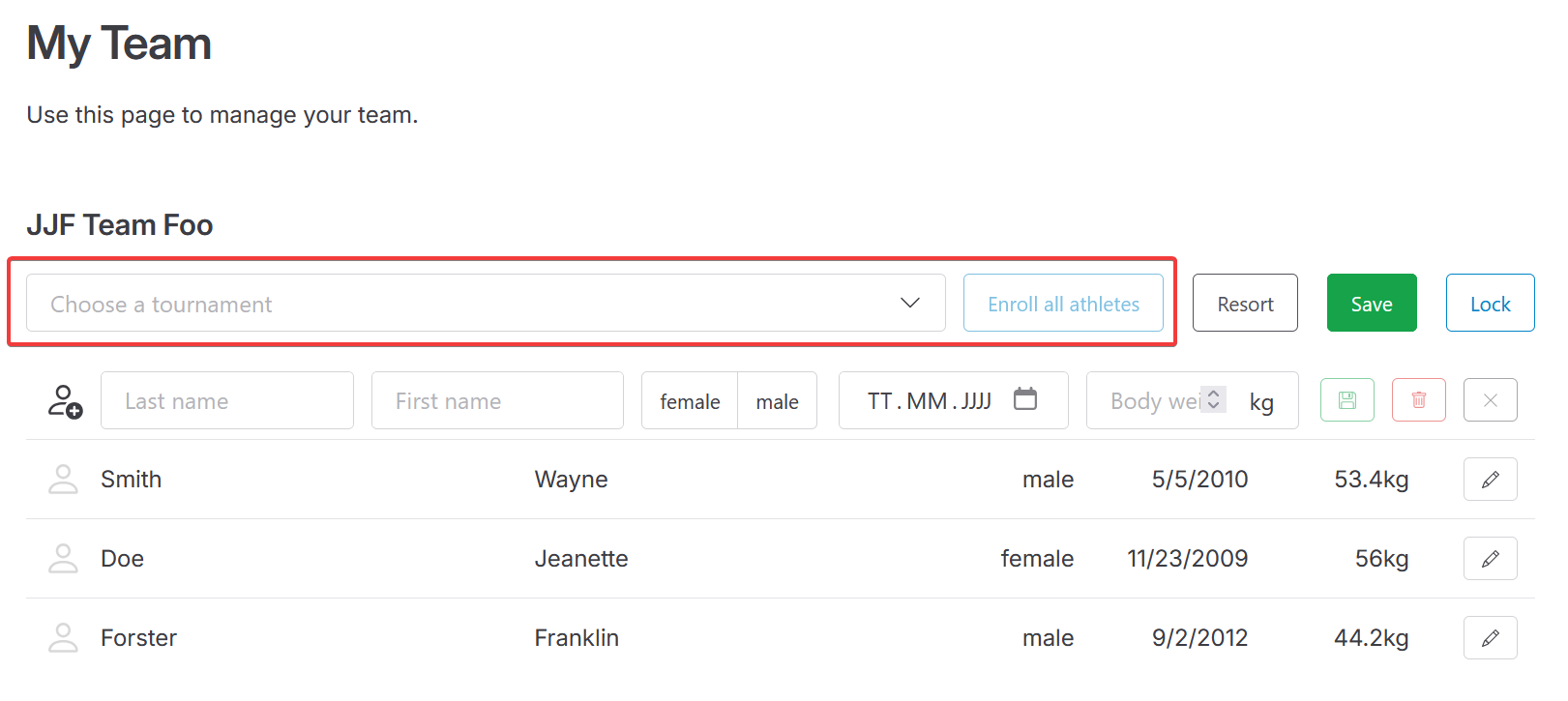
As soon as the team has been approved, a selector for picking an upcoming tournament is presented instead of that note.
Enroll athletes in tournaments
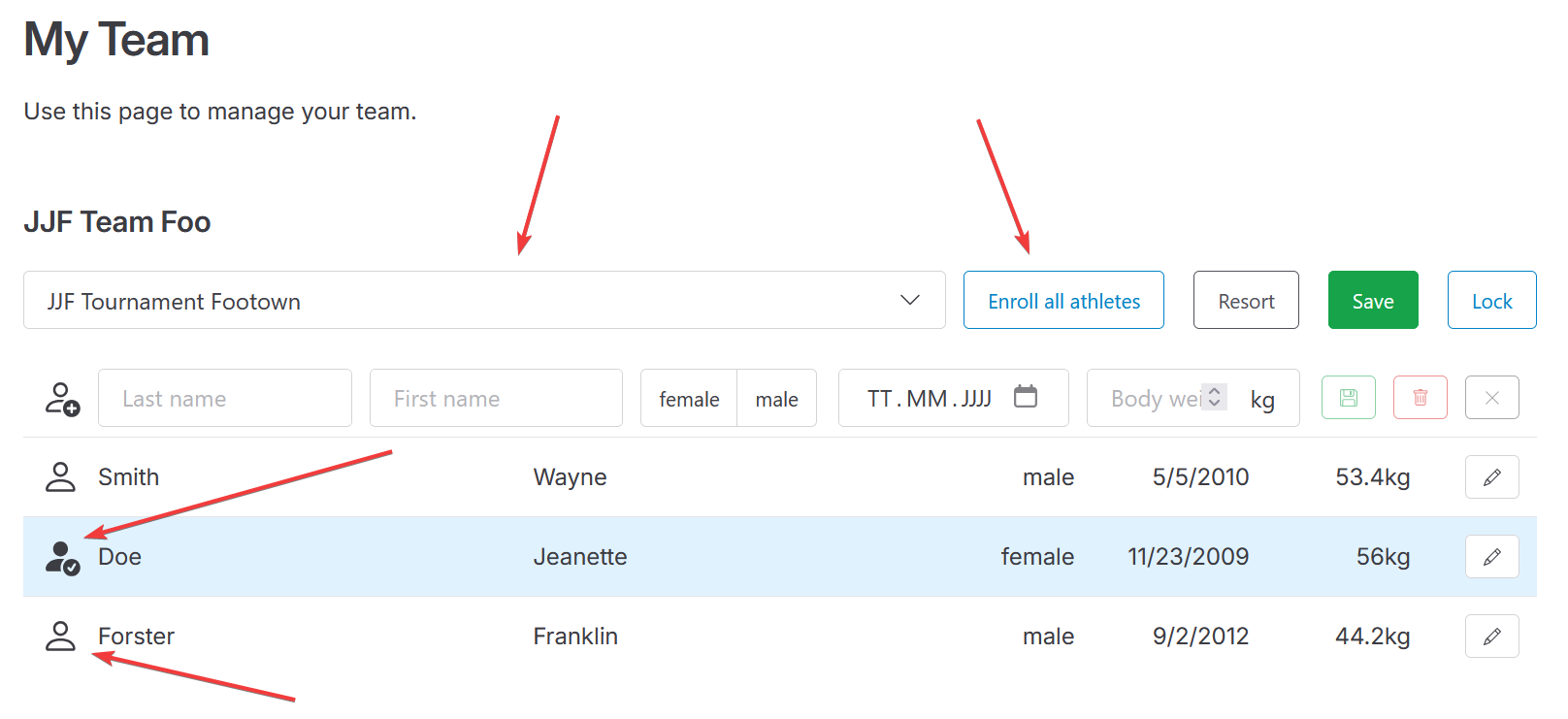
When in unlocked team's management view, athletes can be enrolled in upcoming tournaments like this:
Using selector of upcoming teams atop the list of athletes, a tournament must be selected for enrolling athletes in it.
On picking a tournament, icons in front of either athlete's row get activated.
- An outline of person without a check mark indicates that the according athletes has not been selected for enrolling in the tournament or has been removed from a previous application.
- A filled person with a check mark indicates that the according athletes has been selected for enrolling in the tournament. In addition, a light blue background is used to highlight those athletes.
By clicking those icons either athlete is selected for enrolling in the tournament or is cleared to delist the athlete from a previous application.
Alternatively, a button next to the tournament selector can be clicked to instantly enroll all currently listed athletes in the tournament. If all athletes have been enrolled, clicking that button is delisting all athletes from the tournament.
Next time changes are saved using the green button labelled Save, applications for tournaments are sent to either tournament's host. Any previous application gets replaced so that delisting athletes is possible, too.
Mind to save!
Adjusting an athlete's state of being enrolled in a tournament or not is not reported to either tournament's host unless you click the green top-right button labelled Save.